分享一下我的经验。你也可以用 Github Discussions 搭建自己的论坛、博客、个人笔记等。
欢迎订阅
用户有自主选择权,只看他感兴趣的内容。
-
可以点击项目的 Watch 按钮来订阅消息。具体用法请看 Github - 查看订阅。
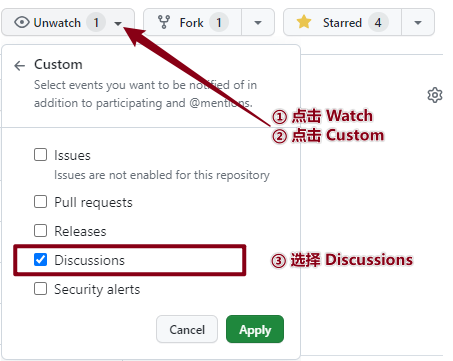
-
也可以只订阅某个讨论。进入某个讨论,点击右边 Notifications 的 Subscribe 按钮。
用户可以在 https://github.com/notifications 里看到订阅的新消息。
👋 Welcome!
We’re using Discussions as a place to connect with other members of our community. We hope that you:
- Ask questions you’re wondering about.
- Share ideas.
- Engage with other community members.
- Welcome others and are open-minded. Remember that this is a community we
build together 💪.
To get started, comment below with an introduction of yourself and tell us about what you do with this community.
本仓库谈论说明
这里所有的 Discussion Format 都是 Announcement:Only maintainers and admins can post new discussions in these categories, but anyone can comment and reply.
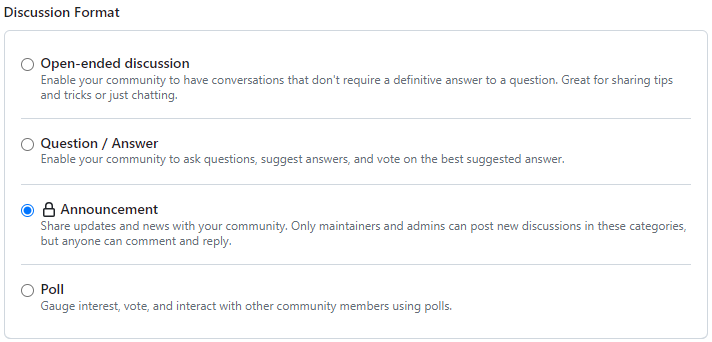
使用讨论 (Discussion)
搜索讨论
- 版块搜索:在 Discussions 页面的搜索框输入搜索词即可。
- 全局搜索:在最上面的 Github 搜索框输入
org:shenweiyan 搜索词就能搜索所有版块的讨论。比如搜"生信"。
排序讨论
- 可以按时间来排序讨论。
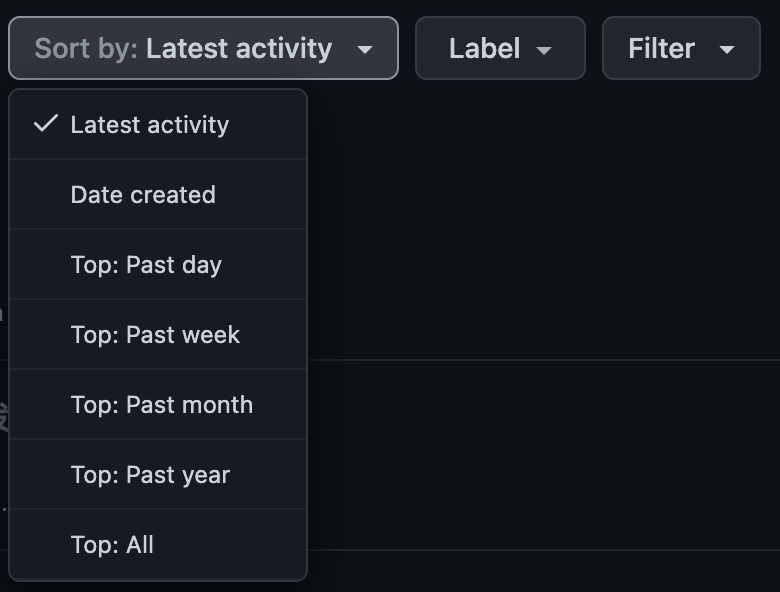
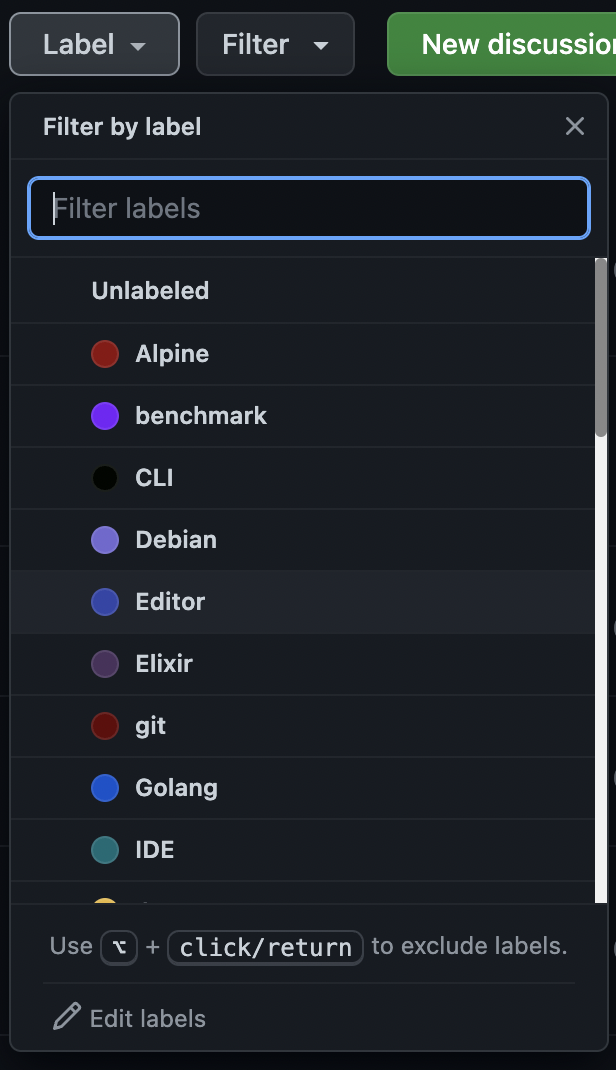
使用 Label 筛选讨论
-
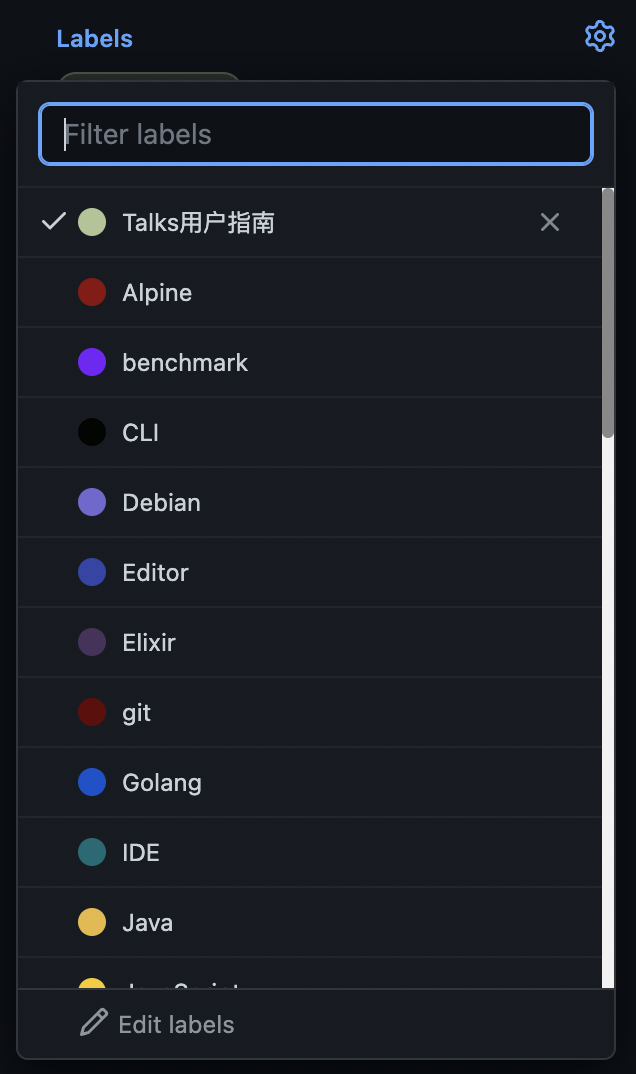
Label 是可以无限加的。一个讨论可以有多个 Label。
-
标记 Label 的好处在于,用户可以在讨论列表里筛选、多选、反选 Label 对应的讨论。
评论
评论有两种。一种是在别人的评论下继续回复评论。一种是最底下的评论框,这会回复到主线里。
如果你针对某个评论进行回复,建议在别人的评论下回复,不要回复到主线。这样其他订阅这个讨论的人不会收到消息提醒的干扰。
讨论管理
讨论分类
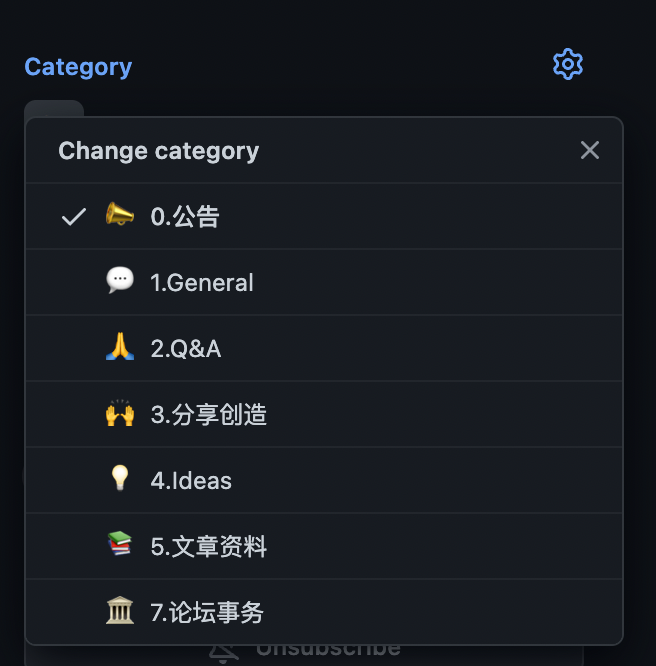
讨论分类由项目管理员维护。按需创建。分类根据名称排序。所以加个数字前缀用来控制显示顺序。
删除讨论
点进讨论详情页,在右侧最底下有个 delete discussion。
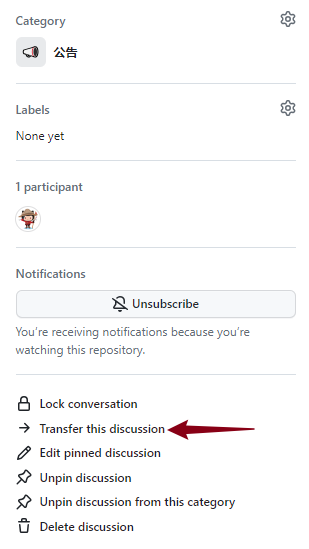
迁移讨论
-
Transfer this discussion 功能可以把讨论移到同组织的另一个项目下。
-
也可以切换讨论分类。
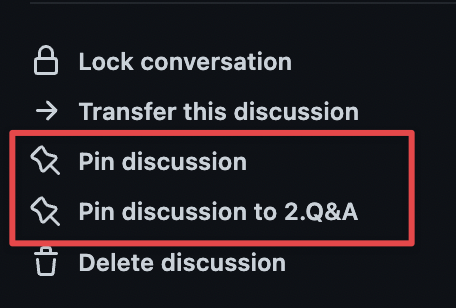
置顶讨论
在讨论详情页面可以选择置到项目 Discussion 的顶部,或者置到讨论分类的顶部。
周报月报
可以考虑使用 Github Action 自动跑脚本,通过 Github API 来获取 Discussion 的消息。然后自动创建 release,把简报内容写到 release body 里。这样订阅了项目 release 的人就可以收到。 可以单独创建一个项目来管理,避免订阅的人受到干扰。
Github Discussion API:
- https://docs.github.com/en/search-github/searching-on-github/searching-discussions
- https://docs.github.com/en/graphql/guides/using-the-graphql-api-for-discussions#search
- Discussions API community/community#43
数据备份
可以考虑使用 Github Action 自动跑脚本,通过 Github API 来获取 Discussion 的消息。
移动端
Github 有移动端 App。除了不支持 Polls 功能,其他功能都挺好用的。能查看提醒,也能发布新讨论,也能回复评论。
邮件端
消息提醒同时会发到你绑定的邮箱里。你也可以用邮箱来查收。
博文中加评论
借助 giscus,可以非常方便在文章页中插入指定的 discussions —— 在导出 discussions 的时候,在文章尾部增加类似以下 JavaScript 即可:
<script src="https://giscus.app/client.js"
        data-repo="shenweiyan/Knowledge-Garden"
        data-repo-id="R_kgDOKgxWlg"
        data-mapping="number"
        data-term="4"
        data-reactions-enabled="1"
        data-emit-metadata="0"
        data-input-position="bottom"
        data-theme="light"
        data-lang="zh-CN"
        crossorigin="anonymous"
        async>
</script>